In the event of a Microsoft outage or service issue, you have access to an Emergency Mailbox through MailShield, ProCirrus's spam filter platform. Follow the steps below so you are never without email during an outage.
Access your Emergency Mailbox
Step 1: Open MailShield from the ProZone
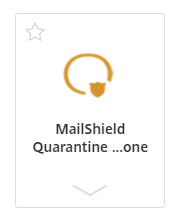
From your ProZone homepage, click the MailShield Quarantine - ProZone icon. If it is not in your Favorites, click All Apps at the top of the ProZone homepage to find it.
Step 2: Sign in to MailShield
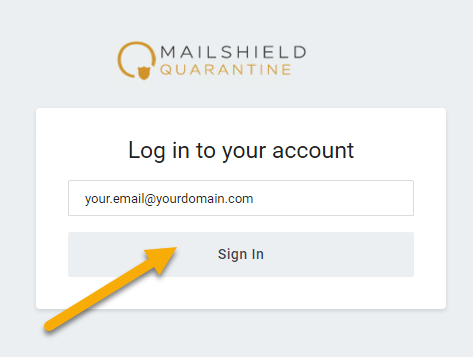
Enter your email address.
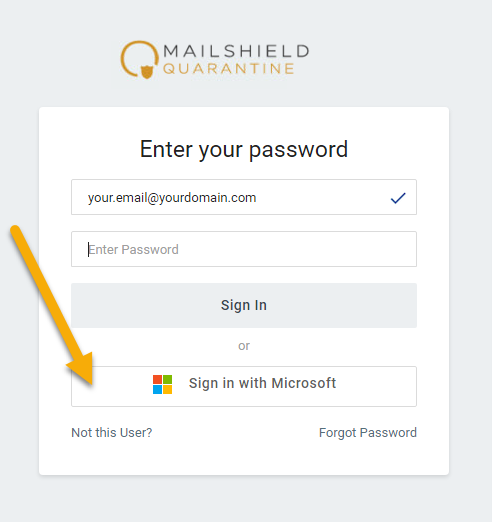
Instead of typing a password, click Sign in with Microsoft at the bottom of the page.
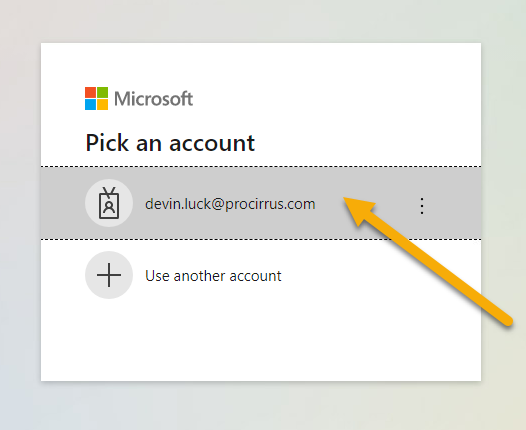
Select your email account from the list to complete sign-in.
Step 3: Open your Emergency Inbox
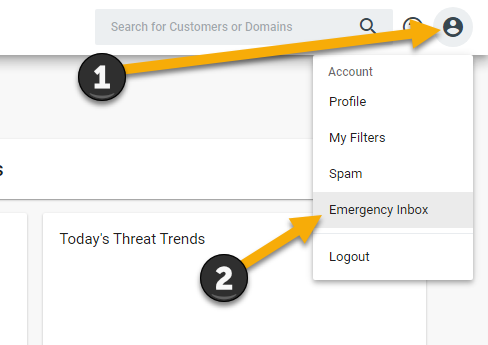
At the top right of the MailShield page, click the Profile icon and select Emergency Inbox from the drop-down menu.
Step 4: Use your Emergency Mailbox
Your Emergency Mailbox opens in a new window, ready for use.
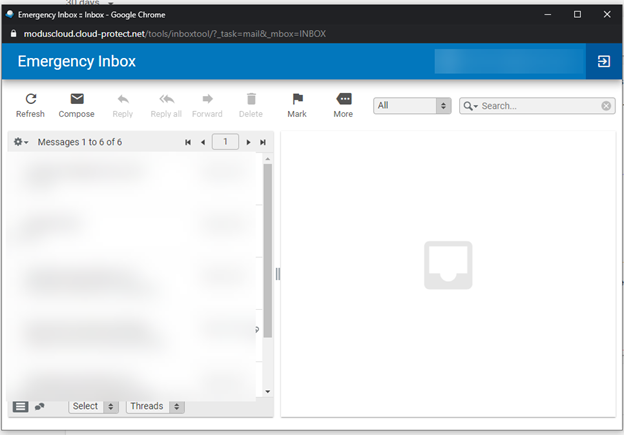
Note: You can send and reply to emails through the Emergency Mailbox. It is meant for temporary use during a Microsoft 365 outage. Outages are rare, but this gives you another tool to keep working and communicating with clients. Once Microsoft 365 services are restored, return to Outlook for normal email.
Was this article helpful?
That’s Great!
Thank you for your feedback
Sorry! We couldn't be helpful
Thank you for your feedback
Feedback sent
We appreciate your effort and will try to fix the article